
To join a Cobblemon server, install that server's exact modpack from Modrinth or CurseForge with the matching mod loader, launch that profile, then open Multiplayer → Add Server, paste the server IP (with the port if one is listed), and click Join Server. Cobblemon Islands makes this even simpler: its downloadable modpack preloads the correct server address, so you just install it and press Play.
TL;DR:
- Use the official modpack link on Modrinth or CurseForge and ensure it matches the server's specified mod loader, either Fabric or NeoForge.
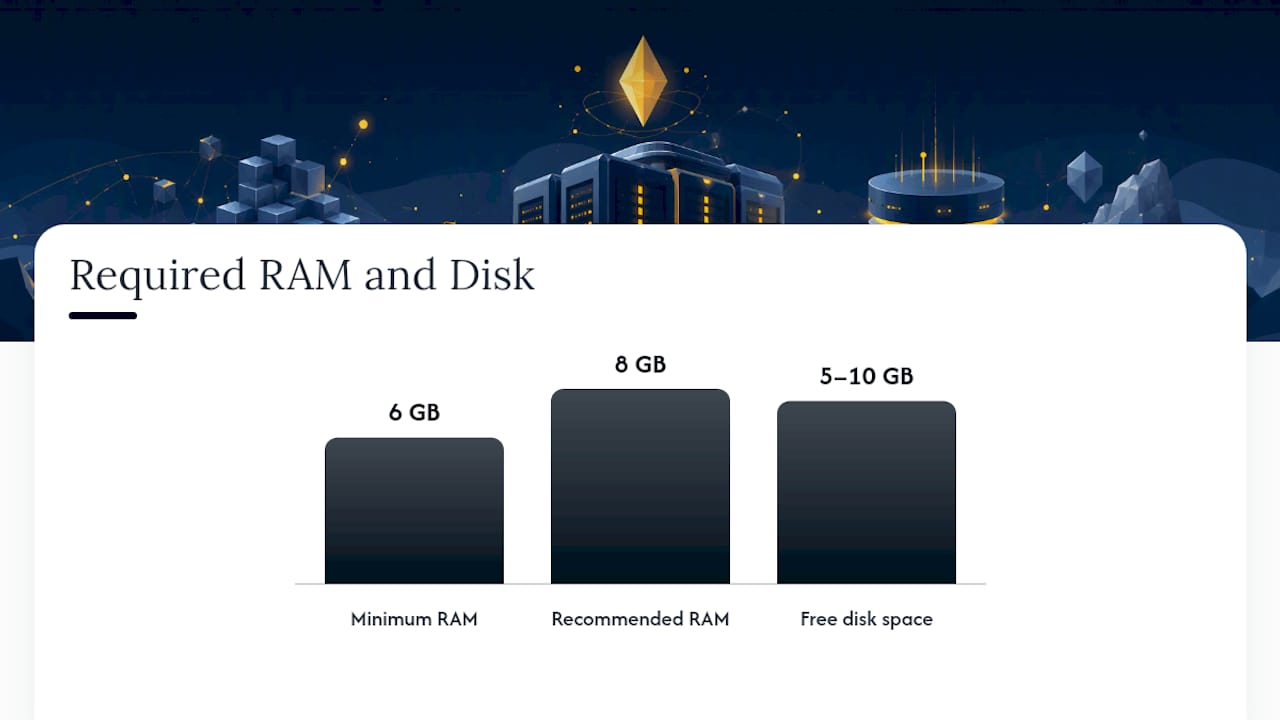
- Allocate at least 6 to 8 GB of RAM and keep 5 to 10 GB of free disk space for the modpack and dependencies before attempting to join.
- Double-check that the loaded Minecraft version and mod loader match the server requirements, especially if connection errors occur.
- Confirm your Java memory setting is high enough, check for firewall or antivirus blocks, and screenshot the version info to troubleshoot connection issues.
- Start with Cobblemon Islands, where the modpack preloads the server address, and read the rules and community guides for a smoother onboarding experience.
Table of Contents
- What You Need Before You Join a Cobblemon Server
- How Do You Install and Connect to a Cobblemon Server?
- Why Won't Minecraft Connect to the Cobblemon Server?
- Where Do You Find Legitimate Cobblemon Servers?
- Cobblemon Islands: A Server Built to Get You in Fast
- A Quick Note on Getting Started Right
- Ready to Play? Here's Your Fastest Path In
- Quick Links to Get You Started
- Sources
What You Need Before You Join a Cobblemon Server
Before you go hunting for a server IP, get your setup straight. Cobblemon runs on Minecraft Java Edition only, so a Bedrock account (the version on Xbox, mobile, and the Windows Store) won't work here. You'll need a Java account and a launcher built for modded play.
Two launchers dominate this space: the Modrinth app and the CurseForge app. Both let you import a modpack with one click and handle dependencies automatically, which matters more than it sounds like once you're dealing with dozens of mod files.
Here's what to check before you download anything:
- Mod loader type. Cobblemon packs run on either Fabric or NeoForge. A pack built for one won't launch on the other, so confirm which loader the server's page specifies.
- Memory allocation. Cobblemon modpacks are heavier than vanilla Minecraft. Give the game at least 6 to 8 GB of RAM if your system allows it, and keep 5 to 10 GB of free disk space for the pack, its dependencies, and world cache.
- The official modpack link. Every legitimate server publishes one direct link, usually on Modrinth or CurseForge. That's the only link you should trust.
- The title screen after launch. Once the modpack loads, the Minecraft version and mod loader should be visible in the corner. That's your confirmation everything installed correctly.
Pro Tip: Screenshot the title screen version number before you try to connect. If a connection error pops up later, you'll already have the exact version info ready to compare against the server's requirements, instead of digging through launcher settings mid-troubleshoot.
How Do You Install and Connect to a Cobblemon Server?
Once your launcher and account are sorted, joining is a five-step process. Follow it in order and you'll skip almost every common failure point.
- Download or import the modpack from the server's official link on Modrinth or CurseForge. Let the launcher pull every dependency mod automatically. This step alone prevents most connection rejections, since trying to connect with a bare vanilla install or a mismatched pack is the single most common reason players can't get in.
- Select the new profile the launcher just created and start it. Watch the loading screen for errors, then check the title screen once you're in.
- Confirm your version and loader match what the server lists on its page. If the server says Fabric 1.21.1 and your title screen shows NeoForge, stop and reinstall the correct pack rather than trying to force a connection.
- Open Multiplayer, then Add Server. Paste the server IP into the address field. If the host lists a custom port, add it directly after the address using a colon, like
play.example.com:25580. Save the entry. - Click Join Server. If the world loads and you land on a spawn platform or welcome area, you're in.
Preconfigured modpacks skip step 4 almost entirely. Some servers bake their server address directly into the pack, so opening Multiplayer already shows the correct entry waiting for you.
Run through this checklist before you click Join, especially on your first attempt:
- Correct profile selected in the launcher, not your default vanilla install
- All mods show as fully downloaded, with no red or missing entries in the mods list
- Java memory allocation set high enough for the modpack's recommended minimum
- Your operating system isn't blocking the launcher through firewall or antivirus settings
Pro Tip: If you're on a shared or work computer, check that your antivirus software isn't quarantining Java processes. Modded Minecraft launches a lot of background Java instances, and overly aggressive security software sometimes kills the connection mid-load.
Why Won't Minecraft Connect to the Cobblemon Server?
Version mismatches cause the overwhelming majority of failed joins. If your client is running Minecraft 1.21.1 with Fabric and the server expects NeoForge, the game will either refuse the connection outright or crash during world load. The fix is almost always the same: reinstall the server's exact modpack rather than trying to patch mods in one by one.
A few specific errors show up constantly:
- "Connection refused" usually means you're missing the port. Custom ports are common on community servers, and if you get refused on the default port, add the specified port to the IP and try again.
- "Incompatible mod set" or a crash on world load points to a version mismatch between your client and the server.
- Client crashes right after clicking Join often trace back to missing dependency mods that didn't finish downloading.
When you're staring at a crash log, search for the terms "mixin" or "modloader" in the error text. Those entries typically reveal loader mismatches faster than scrolling through the whole log line by line.
If none of that resolves it, the cleanest fix is deleting the profile entirely and reinstalling the official modpack fresh rather than trying to hand-patch individual mods. That single habit avoids the drift that builds up when players update some mods but not others.
When you do need help in a server's Discord, post three things together: the crash log file, your full mod list, and a screenshot of your launcher's profile screen. Support teams move fast when they don't have to ask follow-up questions first.
Where Do You Find Legitimate Cobblemon Servers?
Start with Cobblemon's official servers page, which links directly to the mod on Modrinth and to verified community projects. From there, dedicated directories like Best Cobblemon Servers aggregate listings with player counts and verification status, and they consistently flag that mismatched modpacks cause the most join failures.
Legitimate servers share the same trust signals. Look for:
- A direct modpack link on Modrinth or CurseForge, not a random third-party file host
- An active Discord with real conversation, not a ghost server with a handful of bot accounts
- Clear, posted rules covering PvP, trading, and land claims
- Recent update activity and a visible player count on the server's listing
- A feature list you can verify: ranked seasons, player-run gyms, raids, or similar systems
Many verified Modrinth server pages include a short "how to join" block alongside a Discord invite, which gives you two independent ways to confirm the server is real before you commit a download. Since Cobblemon's development team doesn't run official multiplayer servers themselves, every server you find is community-run, and each one sets its own version, rules, and modpack. Never run an executable a server sends you directly instead of the published modpack link. That single habit filters out nearly every scam attempt you'll run into.
Cobblemon Islands: A Server Built to Get You in Fast
Cobblemon Islands has run continuously since June 2023 on Minecraft 1.21.1, and its modpack preloads the server address so there's no IP to type in manually. Install it, hit Play, and you're already pointed at the right destination.
Once you're in, the feature list runs deep:
- Player-run gyms and ranked seasons that pay out exclusive skins each cycle
- Five realms to explore, including custom Nether and End zones, with shared progress across all of them
- Custom models for every Pokemon, covering Megas, Z-Moves, and Terastallization
- Server-wide raids, mass outbreaks, ticket-based Expedition dungeons, and a Battle Factory for players who want a competitive testing ground
Some servers have active communities with large Discord memberships, and their modpacks have been downloaded extensively on mod hosting sites. Both numbers matter because they indicate active maintenance, not abandonment. Rules and setup instructions live on the server's wiki, and the spawn walkthrough is worth a read before your first login.
A Quick Note on Getting Started Right
The biggest mistake I see new players make isn't technical. It's skipping the server's rules page and Discord before diving in, then getting confused when they miss an event or break an unwritten social norm. Read the rules first, introduce yourself in Discord, and ask questions in the help channel instead of guessing.
I work with the Cobblemon Islands team, so my read on the setup process comes from watching new players onboard week after week, not from a single test run. The technical side matters, but the community side is what determines whether you stick around.
— Benji
Ready to Play? Here's Your Fastest Path In
Cobblemon Islands solves the exact problem this guide just walked through: mismatched modpacks, wrong ports, and manual IP entry. Its modpack preloads the server address, so instead of hunting down an IP and hoping the loader matches, you download one file, launch it, and press Play.
Some servers are free to play, with realms, gyms, raids, and ranked seasons open to players from first login. An optional cosmetic shop may be available for players who want to customize their look, but nothing in it affects gameplay or gates content behind a purchase.
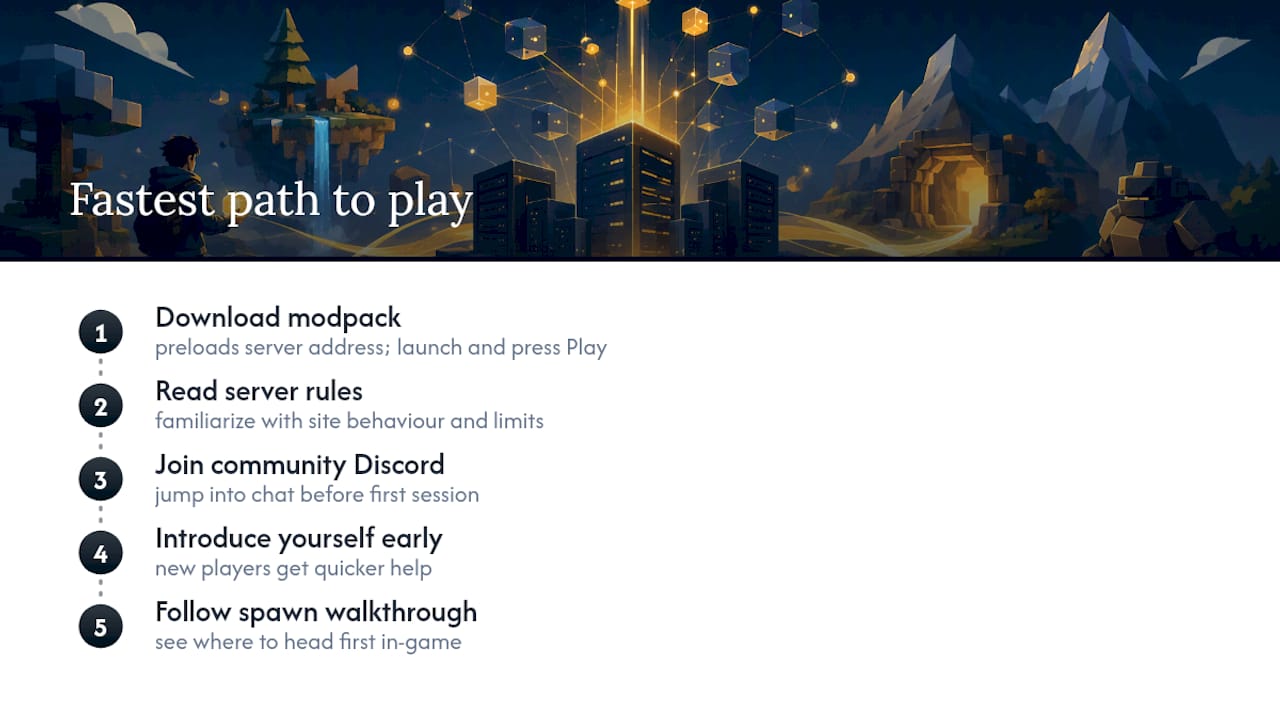
Start by grabbing the modpack and reading through the server rules, then jump into the community Discord and say hello before your first session. New players who introduce themselves early tend to find their footing faster, since the community here is genuinely active about helping newcomers get oriented. Once you're loaded in, check out the spawn walkthrough to see where to head first.
Quick Links to Get You Started
Grab the modpack and rules here: Cobblemon Islands server rules, the full wiki, and Cobblemon's official servers page for broader community options.
Sources
- How to Join a Cobblemon Server | Cobblemon Servers
- Poke Legends Cobblemon Server - Modrinth
- Best Cobblemon Servers in 2026 (225+ Ranked, Updated Daily)